

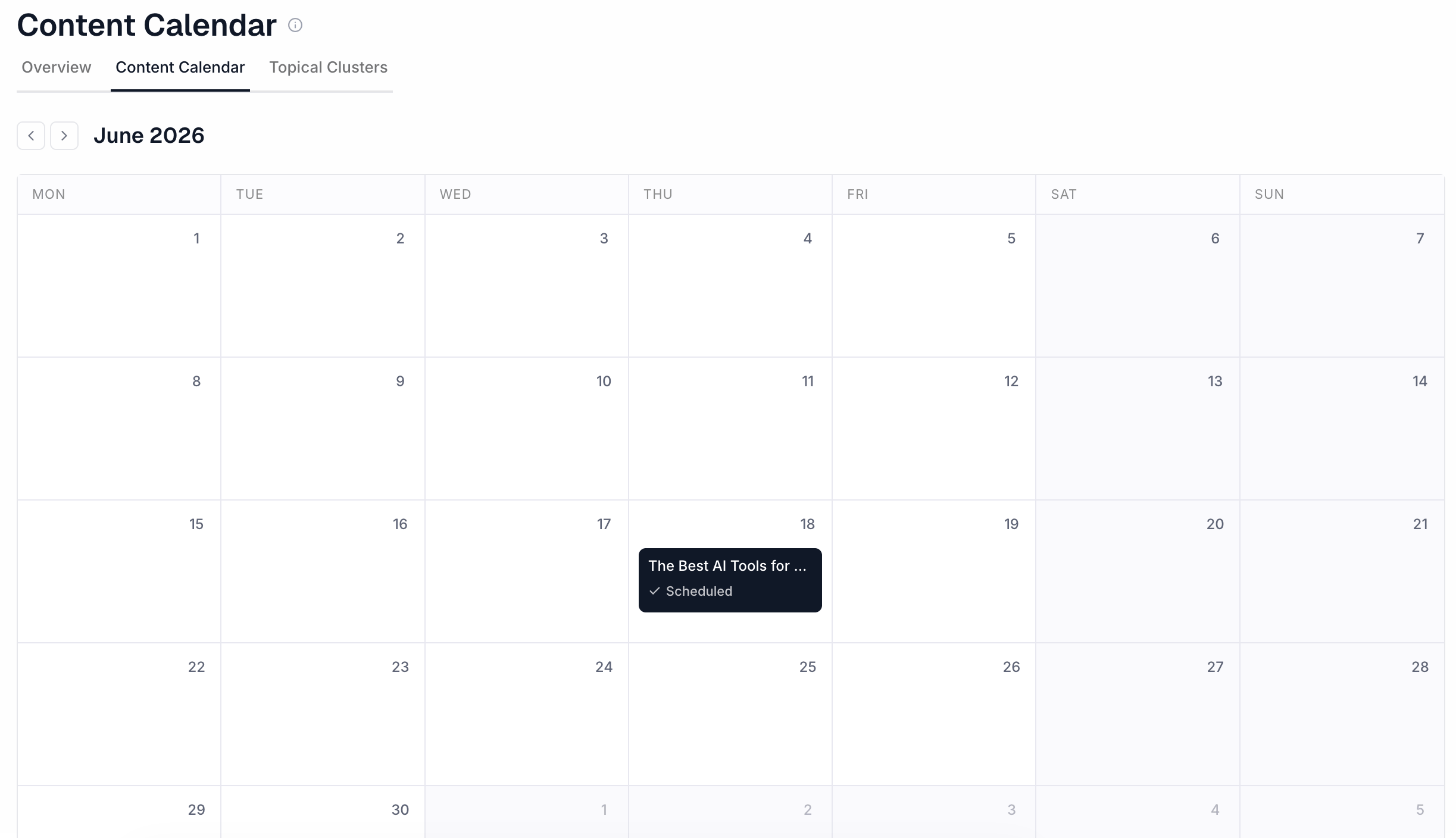
What the Content Calendar is for
The calendar shows articles that have been scheduled from the Content Editor. Use it to understand:- what content is scheduled
- when content is planned to go live
- which days already have content planned
- how your publishing schedule looks over time
How content appears on the calendar
Articles appear on the calendar when they are scheduled from the Content Editor. If an article has not been scheduled, it will not appear on the calendar. Use the Content Editor to schedule articles after they are created and reviewed.Opening scheduled content
You can open scheduled content from the calendar. This lets you review or edit the article before it goes live. Use this when you want to double-check content, metadata, images, or formatting.Scheduled status
Scheduled content is content that has a future publish date. It may not be live on your website yet. Review the date and time to make sure it matches your publishing plan.Recommended workflow
A simple calendar workflow is:- Create or edit an article.
- Schedule it from the Content Editor.
- Open the Content Calendar.
- Review the scheduled date.
- Open the article if changes are needed.