> ## Documentation Index
> Fetch the complete documentation index at: https://docs.serpyseo.com/llms.txt
> Use this file to discover all available pages before exploring further.
# Overview
Content Hub is where you create, organize, and manage content in Serpy.
Use it to start new articles, review outlines, continue editing drafts, organize content into folders, and manage content status.
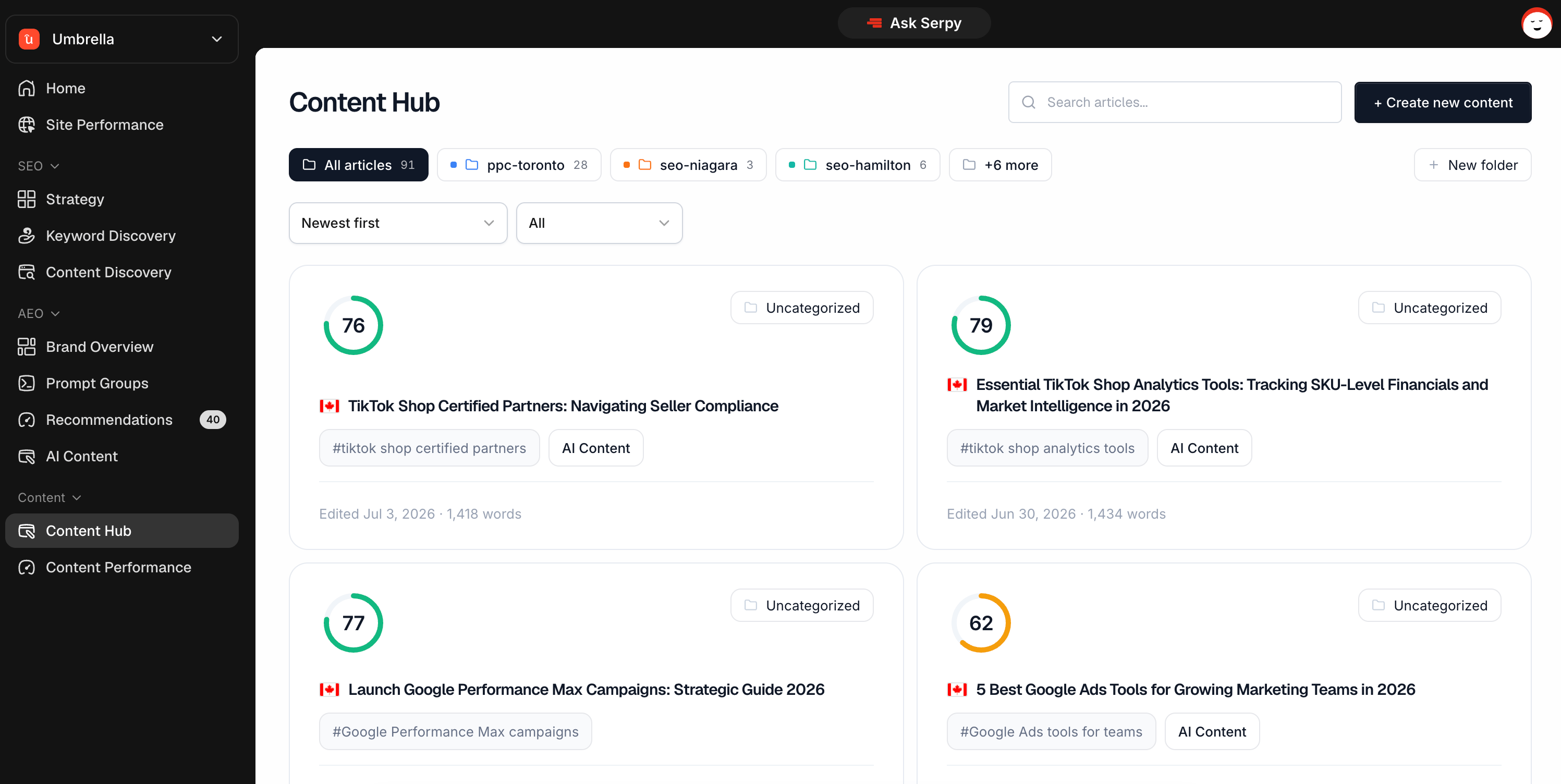 ## What Content Hub is for
Content Hub is the main place for content creation.
You can use it to:
* create new content
* generate outlines
* continue editing articles
* organize content into folders
* filter by status
* manage drafts and published content
* create content from keywords, prompts, recommendations, clusters, or scans
It brings your content workflow into one place.
## How content gets created
Content can start from several places in Serpy.
You can create content from:
* Content Hub
* recommendations
* prompt groups
* keyword research
* topical clusters
* content discovery scans
* page targeting
* scratch
No matter where content starts, it eventually moves into Content Hub so you can manage and edit it.
## Folders
Folders help you organize content.
## What Content Hub is for
Content Hub is the main place for content creation.
You can use it to:
* create new content
* generate outlines
* continue editing articles
* organize content into folders
* filter by status
* manage drafts and published content
* create content from keywords, prompts, recommendations, clusters, or scans
It brings your content workflow into one place.
## How content gets created
Content can start from several places in Serpy.
You can create content from:
* Content Hub
* recommendations
* prompt groups
* keyword research
* topical clusters
* content discovery scans
* page targeting
* scratch
No matter where content starts, it eventually moves into Content Hub so you can manage and edit it.
## Folders
Folders help you organize content.
 You can use folders for:
* campaigns
* services
* clients
* topics
* publishing stages
* content types
Folders are optional, but they can be useful as your content library grows.
## Statuses
Content statuses help you understand where each article is in the workflow.
Common statuses include:
* Outline Ready
* Created
* Published
Outline Ready means an outline has been created, but the full article has not been generated yet.
Created means the article has been generated and is ready to edit.
Published means the article has been published to a connected CMS.
## Creating content
Use the Create Content button to start a new article.
You’ll choose a keyword, country, content type, custom voice, and any custom instructions before generating an outline.
After the outline is ready, you can review it before creating the article.
## Recommended workflow
A simple content workflow is:
1. Start from a recommendation, keyword, prompt, or Content Hub.
2. Generate an outline.
3. Review and adjust the outline.
4. Generate the article.
5. Edit and optimize in the Content Editor.
6. Publish, schedule, or export.
## Tips
Use folders once you have more than a few articles.
Review outlines before generating articles.
Use filters to find content by status.
Start from recommendations or prompt results when you want content tied to AI visibility.
Use Content Hub as your central library for all created content.
You can use folders for:
* campaigns
* services
* clients
* topics
* publishing stages
* content types
Folders are optional, but they can be useful as your content library grows.
## Statuses
Content statuses help you understand where each article is in the workflow.
Common statuses include:
* Outline Ready
* Created
* Published
Outline Ready means an outline has been created, but the full article has not been generated yet.
Created means the article has been generated and is ready to edit.
Published means the article has been published to a connected CMS.
## Creating content
Use the Create Content button to start a new article.
You’ll choose a keyword, country, content type, custom voice, and any custom instructions before generating an outline.
After the outline is ready, you can review it before creating the article.
## Recommended workflow
A simple content workflow is:
1. Start from a recommendation, keyword, prompt, or Content Hub.
2. Generate an outline.
3. Review and adjust the outline.
4. Generate the article.
5. Edit and optimize in the Content Editor.
6. Publish, schedule, or export.
## Tips
Use folders once you have more than a few articles.
Review outlines before generating articles.
Use filters to find content by status.
Start from recommendations or prompt results when you want content tied to AI visibility.
Use Content Hub as your central library for all created content.